Install the app,
paste your API keys.
Compris! is a Windows app. The first time you open it, a guide walks you through choosing your language and setting up the AI. Sign up for each service for free, copy your key, and paste it in.
- Your keys are stored only on your PC, encrypted
- If Windows shows “Windows protected your PC” during installation, click “More info” → “Run anyway” (shown because app signing is still being set up)
- You pay AI API fees only for what you use. $0 in months you don’t use it, and almost free in year one at 7–8 hours of classes a week, thanks to free credits and free tiers
 GeminiRecommended
Press “Record Start”
and pick your languages.
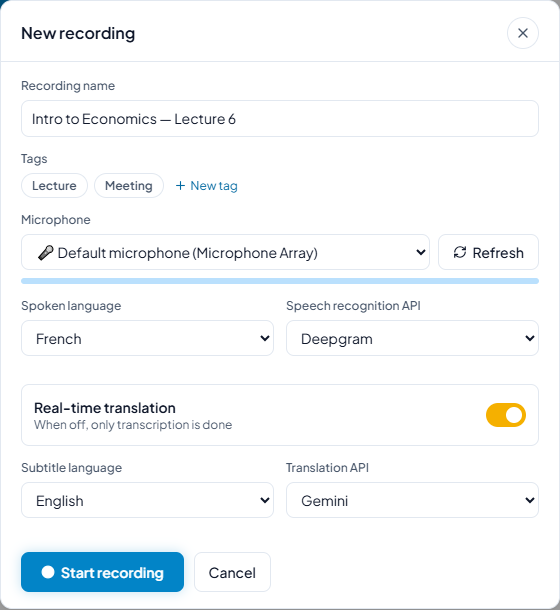
Choose the language being spoken and the language you want subtitles in, then press “Start recording”. Add a tag (Lecture, Meeting…) to find it easily later.
- For online classes, choose “PC audio” instead of a microphone to subtitle Zoom, Teams or YouTube directly
- Put your PC as close to the teacher as you can for better accuracy
- Bluetooth earphone mics struggle with distant voices — use your PC’s built-in mic or a USB mic
Follow the subtitles,
ask when you’re lost.
As your teacher speaks, the original and the translation scroll by. Missed something? Just scroll back.
- Ask the AI about the lecture right away in the “Ask” tab
- Select the original or the translation to quote it in your notes
- Select a word to add it to your vocabulary
- Lost for words? Use “Speak for me” — say it in your language and Compris reads it out in theirs
After class,
all that’s left is review.
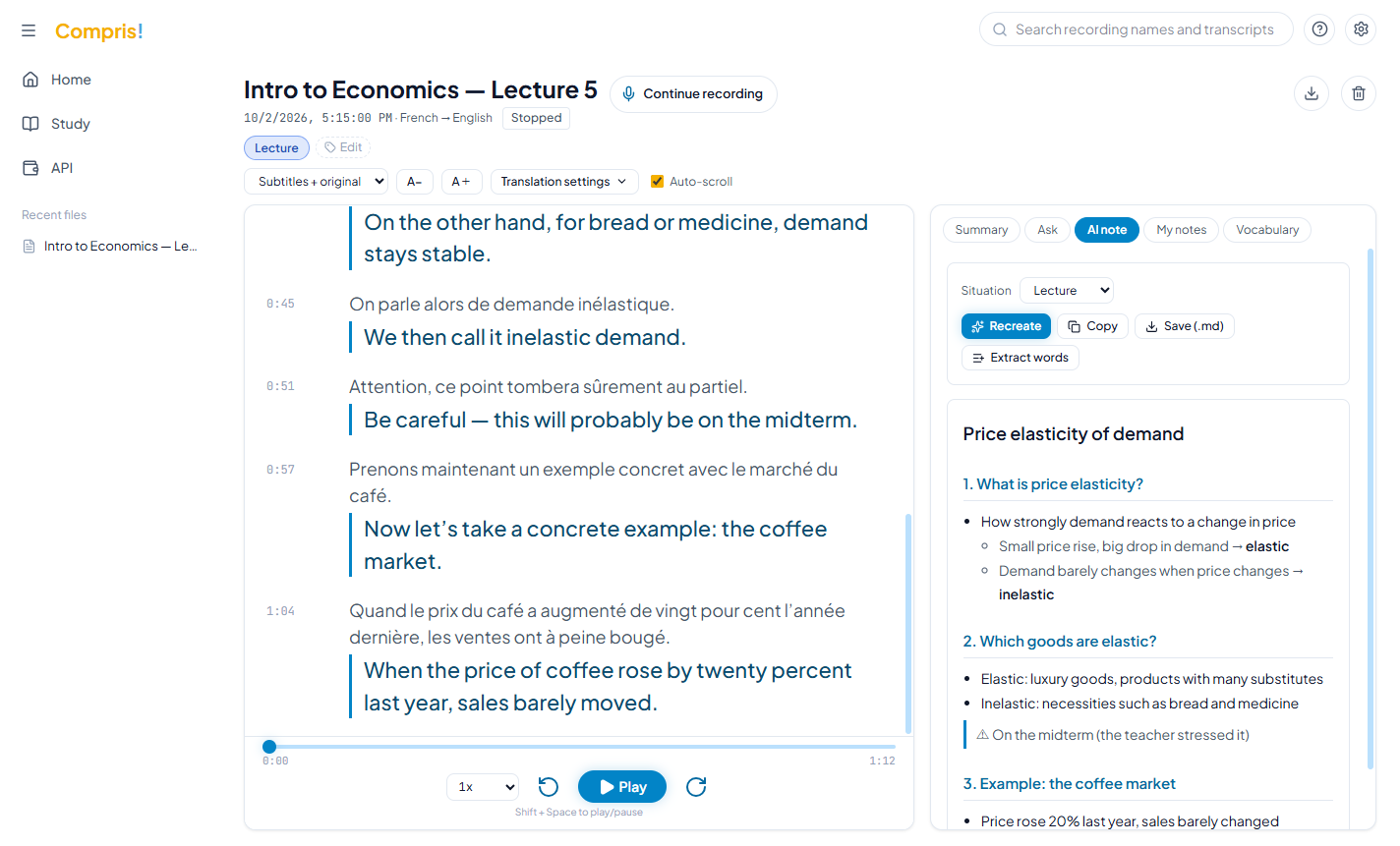
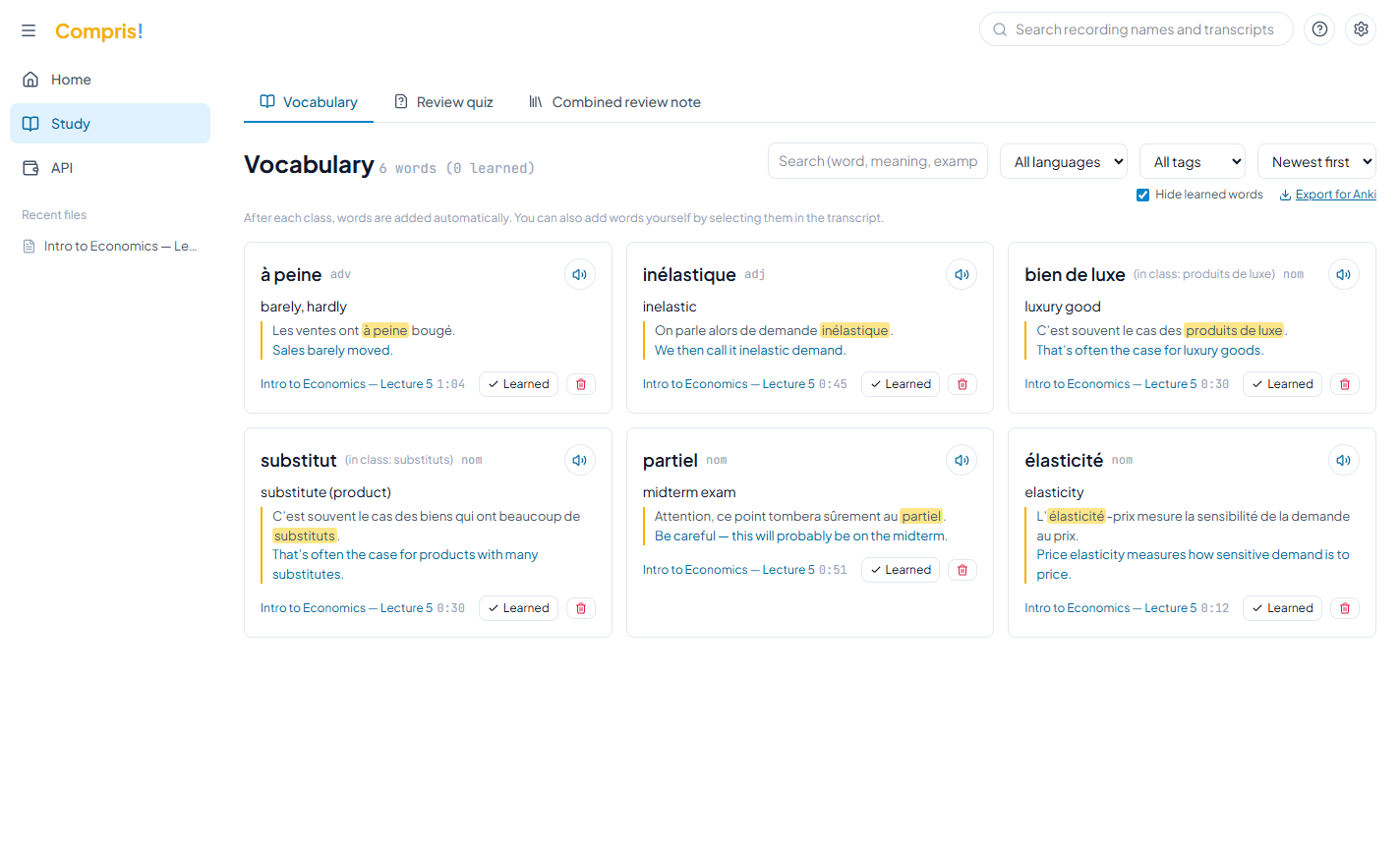
When you stop recording, AI notes, vocabulary and a review quiz are created automatically. Open “Study” to see the words and quizzes from all your classes in one place.
- AI notes: structured with headings, ready for exam prep
- Vocabulary: with example sentences and your teacher’s voice — words from class are easier to remember
- Review quiz: see your weak spots every time you take it
- Click a timestamp to hear that moment again
Use “Import File” next to “Record Start” on Home to bring in a video or audio file (mp4, mp3 and more, up to 2 GB). Compris! creates the transcript, translation and AI notes — an hour-long file takes just a few minutes.
Questions? Start here.
How much does it cost?
The app is a one-time purchase: $20 / €15 with the early-bird offer (regular $40 / €30). You can try every feature free for 7 days before buying (counted from your first recording). On top of that, you pay AI API fees only for what you use — $0 in months you don’t use it. In the first year, Deepgram’s free credit ($200) and Gemini’s free tier make it almost free (at 7–8 hours of classes a week). After that, expect roughly $7–$14 a month for a few classes a week.
Does it work for online classes?
Yes. Choose “PC audio” when you start recording, and Compris! subtitles whatever your PC is playing — Zoom, Teams, Google Meet, YouTube and more.
Which languages are supported?
Seven: English, French, Spanish, German, Chinese, Korean and Japanese. You can translate between any two of them, and the app itself is available in the same seven languages.
Can I ask the AI questions during class?
Yes. Even while recording, you can ask about everything said so far in the “Ask” tab. Answers include the timestamp of the moment they’re based on.
Where are my recordings and notes stored?
Everything is saved on your own PC. For transcription and translation, audio and text are sent to the AI services you registered (such as Deepgram and Gemini).
Does it work on Mac?
Not yet — it’s Windows only for now.
Get to “Got it!” in your very next class.
Early bird: one-time $20 / €15. $0 in months you don’t use it, almost free API costs in year one at 7–8 hours a week.
Try it free